Create YouTube Subtitles
How to Create YouTube Subtitles (CC): The Ultimate Guide
Have you ever uploaded a YouTube video you were proud of, only to see it get lost in the vast ocean of content? You optimized the title, designed a catchy thumbnail, but something was still missing. Often, that secret ingredient is YouTube subtitles.
More than just text on the screen, YouTube subtitles (also called Closed Captions or CC) are a powerful tool for growth. They can transform your channel's performance, making your content accessible to a wider audience while sending positive signals to the YouTube algorithm. In this comprehensive guide, we'll walk you through everything you need to know about creating effective YouTube subtitles, from the "why" to the "how," and introduce you to tools that make the process effortless.
Why YouTube Subtitles are Non-Negotiable for Success
If you think subtitles are only for the hearing impaired, you're missing out on a massive opportunity. Here’s why adding YouTube subtitles is one of the smartest moves you can make for your channel.
Boost Accessibility and Inclusivity
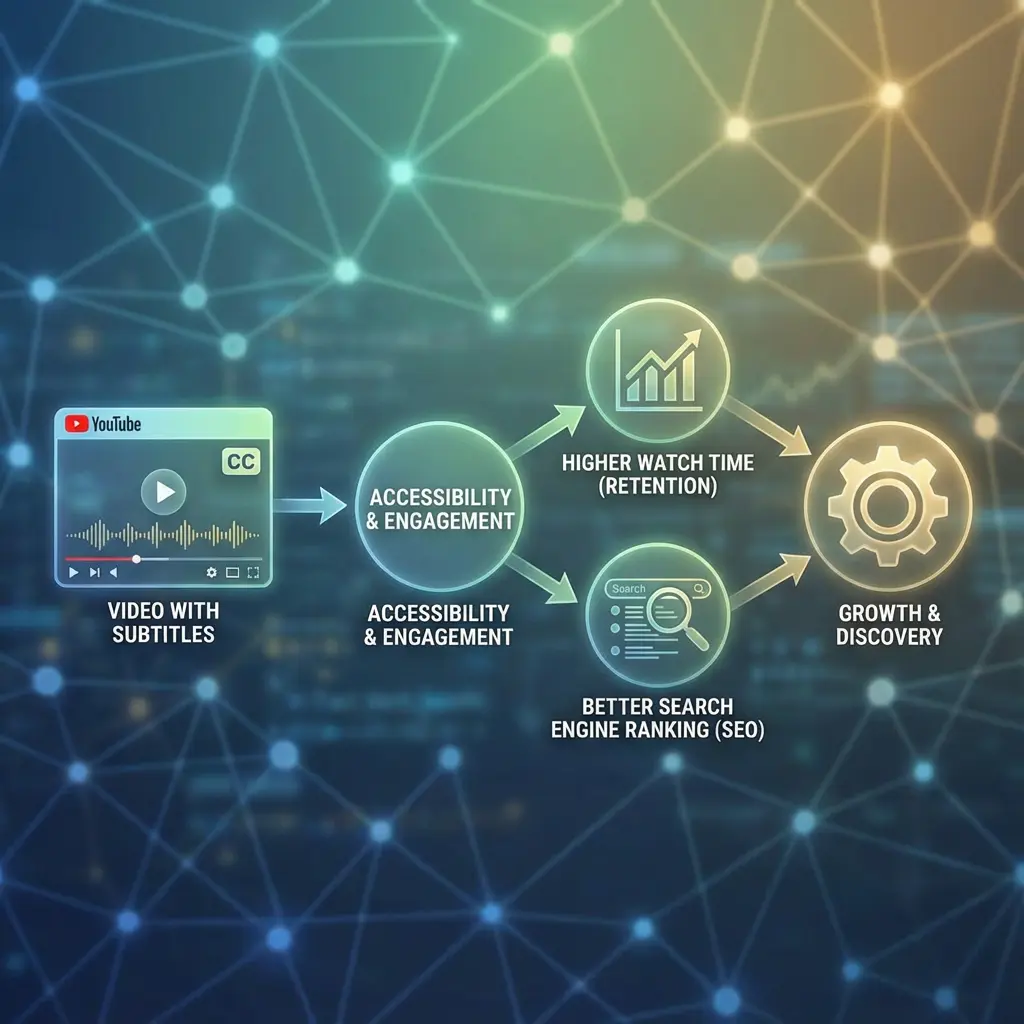
First and foremost, YouTube subtitles make your content accessible to deaf and hard-of-hearing viewers. This isn't just a nice-to-have; it's a core aspect of building an inclusive community. Furthermore, they help non-native speakers understand your content better, breaking down language barriers.
Skyrocket Your Watch Time and Audience Retention
A huge portion of viewers watch videos with the sound off—on public transport, in offices, or in quiet homes. If your video has no subtitles, these viewers will click away. YouTube subtitles keep them engaged, which increases your average view duration. This is a critical metric that tells YouTube your video is valuable, leading to more recommendations.
Supercharge Your YouTube SEO
This is the superpower of YouTube subtitles. YouTube's algorithm bots can't watch or listen to your video, but they can read the text from your subtitles. By providing this text, you're giving YouTube a perfect transcript to understand your content's topic, context, and keywords. This dramatically improves your chances of ranking in YouTube and even Google search results.
Getting Started: Subtitle Formats & YouTube's Requirements
Before you dive in, it's helpful to understand the technical side. YouTube supports several subtitle file formats, but one is the universal favorite.
SRT Files: The Gold Standard
The SubRip Subtitle file (.srt) is the most common and widely supported format. It's a simple text file that contains:
The sequence number of the subtitle.
The start and end timecode.
The text of the subtitle itself.
Its simplicity makes it compatible with nearly every video platform and editing tool. When you use an automatic tool like Captiono, you can typically export your subtitles directly as an SRT file, ready for upload.
Other Supported Formats
WebVTT (.vtt): A modern format for the web, also widely accepted.
SBV: A legacy YouTube-specific format (SRT is now preferred).
Using the correct format ensures a smooth upload process without any timing errors.
Method 1: Creating Subtitles Directly in YouTube Studio
YouTube offers a built-in tool for creating subtitles. It's a viable option, but it can be time-consuming.
Step 1: Upload Your Video and Navigate to the Subtitles Menu
After uploading your video to YouTube, go to YouTube Studio. Select "Content," click on the title of your video, and then choose "Subtitles" from the left-hand menu. You'll see an option to "Add Language" and then add subtitles.
Step 2: Use the Manual Transcription Editor
YouTube will open its subtitle editor. You can play your video and type the text manually, pausing as you go. The editor allows you to set the in and out times for each subtitle block.
Pros: It's free and integrated directly into the platform.
Cons: Extremely slow and labor-intensive. It requires full concentration and can take hours for a long video.
Step 3: Use YouTube's Auto-Sync
Alternatively, you can paste a full transcript of your video, and YouTube will attempt to automatically sync the text to the audio timings. The results can be hit or miss and often require significant manual correction.
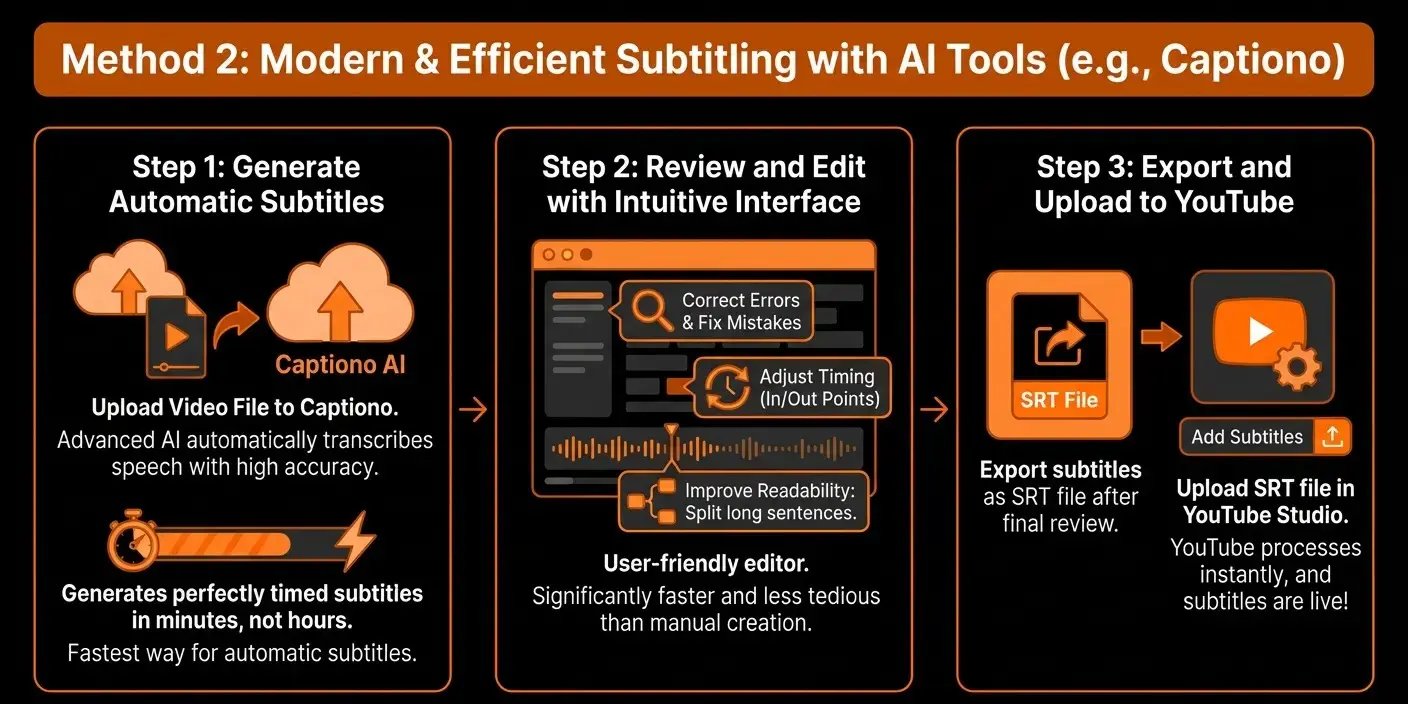
Method 2: The Modern & Efficient Way with AI Tools Captiono
For creators who value their time and want professional results, AI-powered subtitle generators are the game-changer. This is where a tool like Captiono excels.
Step 1: Generate Automatic Subtitles from Your Video
Instead of typing everything manually, simply upload your video file directly to Captiono. Its advanced AI will automatically transcribe the speech with high accuracy, generating perfectly timed subtitles in minutes, not hours. This is the fastest way to create automatic subtitles for videos.
Step 2: Review and Edit with an Intuitive Interface
Once the AI has done the heavy lifting, you enter Captiono's user-friendly editor. Here, you can:
Correct errors: Fix any minor mistakes the AI might have made.
Adjust timing: Easily change the in and out points of each subtitle block.
Improve readability: Split long sentences into two shorter, more digestible lines.
This process is significantly faster and less tedious than starting from scratch.
Step 3: Export and Upload to YouTube
After your final review, export your subtitles as an SRT file. Then, head back to the "Subtitles" section in YouTube Studio for your video, click "Add," and simply upload the SRT file. YouTube will process it instantly, and your YouTube subtitles will be live!
Pro Tips for Creating High-Impact YouTube Subtitles
Creating subtitles is one thing; creating effective subtitles is another. Follow these best practices to ensure your YouTube subtitles provide the best viewer experience.
Optimize for Readability and Speed
Viewers need to read your subtitles quickly. Follow these guidelines:
Keep it short: Aim for a maximum of two lines per subtitle.
Mind the duration: Each subtitle should stay on screen for 1-3 seconds to be readable.
Break at natural points: Split lines at a logical pause or phrase, not in the middle of a thought.
Add Non-Speech Elements for Context
For true closed captions, include relevant non-speech information in square brackets. Examples: [upbeat music], [door slams], [sighs]. This provides crucial context for viewers who can't hear the audio.
Use Correct Punctuation and Capitalization
Proper punctuation (commas, periods, question marks) makes subtitles much easier to read. Avoid using ALL CAPS, as it can be perceived as shouting and is harder to read.
Taking Your Subtitles to the Next Level: Translation
Once you have your base YouTube subtitles in your native language, you can unlock a global audience by translating them. YouTube allows you to add multiple subtitle tracks in different languages.
You can use a tool like Captiono to get a high-quality first draft of the translation, which you can then polish. This process is detailed in our guide on how to translate video subtitles. Offering translated subtitles can help you tap into new, untapped markets and grow your international viewership.
Conclusion: Don't Upload Another Video Without Subtitles
YouTube subtitles are far more than just accessibility features; they are a strategic powerhouse for any serious creator. They enhance the viewing experience for everyone, keep people watching longer, and give the YouTube algorithm the signals it needs to promote your content.
While manual creation is an option, AI-powered tools Captiono have democratized the process, making it fast, affordable, and incredibly accurate. The time and frustration you save can be better spent on what you do best: creating amazing content.
So, take action today. Choose one of your existing videos or your next upload and add professional YouTube subtitles. Your future global audience will thank you for it.

download box
powerful video editor based on artificial intelligence


Recent posts


Categories


Recent Comments